> For the complete documentation index, see [llms.txt](https://docs.tip4serv.com/llms.txt). Markdown versions of documentation pages are available by appending `.md` to page URLs; this page is available as [Markdown](https://docs.tip4serv.com/store-management/editing-your-store-design.md).
# Editing your store design
Making a store that suits your esthetic is really important, in this tutorial we'll show you how you can align your store to your design vision.
### 1 - Choosing your theme
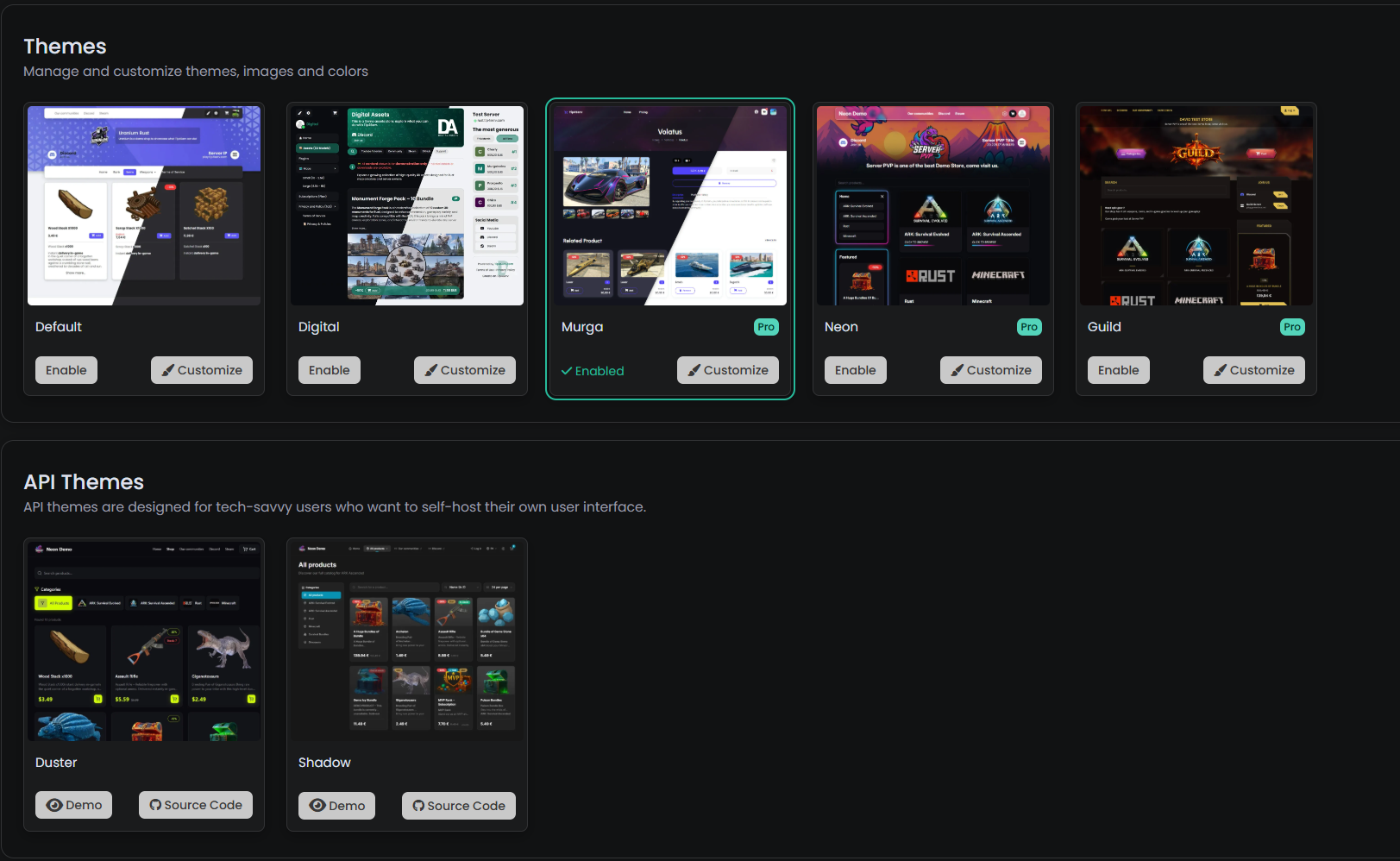
The first step before editing your theme is to choose a theme which will be the template of your store. There are two types which are important to distinguish to avoid any confusion.
* **Native Themes:** These are the ones you can see directly from your store; they are the ones we will focus on.
* **API Themes:** These themes are made for tech-savvy users who wish to customise every single detail of their store.
We'll keep our focus today on native themes. Some of them might require a Tip4Serv Pro plan, but we also offer free themes. To start, enable the theme you wish to use for your store and press Customize.
### **2 - Editing the theme**
Once you've accessed the editor, you will be prompted with this screen, which is divided into two parts. The left part is reserved for the editing of general settings, while the right part is reserved for the rendering of your store and also visual edits, like changing images, editing text, or providing style edits on text.
To edit text, it's quite simple: you will see some text with a purple dotted border. If you see this, it means that this element is editable. Some text might even allow you to do rich text editing. Simply try to select an text zone and you'll see a toolbar allowing you to do further customization.
Once you've made all your changes, make sure to press the save icon button. If you edited general settings, you'll have to press the save button which is present on the left side.
Now that you've fully gotten a grasp of the Tip4Serv editor, you are now fully equipped to design the store aligned with your vision.