> For the complete documentation index, see [llms.txt](https://docs.tip4serv.com/llms.txt). Markdown versions of documentation pages are available by appending `.md` to page URLs; this page is available as [Markdown](https://docs.tip4serv.com/store-management/managing-multiple-stores.md).
# Managing multiple stores
This documentation explains how to create and manage multiple Tip4Serv stores while controlling them from a single master account.
## 1. Create a New Store
* **Create a New Email Address:**\
Each additional store requires a unique email address. This email will be used to create a dedicated account for the store.
* **Create a Tip4Serv Account for the New Store:**\
Log out of your current account and go to [Tip4Serv](https://tip4serv.com) and create a new account using the newly created email address. Then Fill in the required information in **MY SETTINGS**.
## 2. Add the Master Account as an Administrator
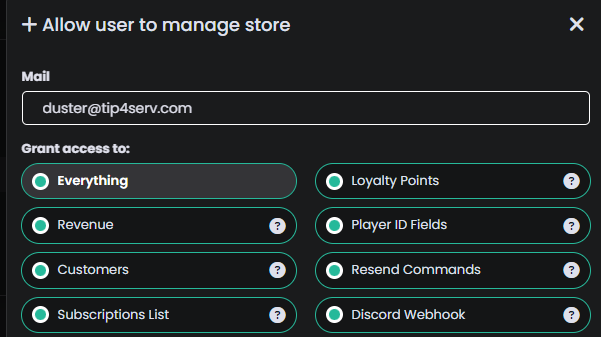
* **Navigate to the** [**Manage Team**](https://tip4serv.com/dashboard/accounts) **section in the dashboard.**
* **Add the Master Account’s Email Address:**
* Enter the email address of the master account you wish to use to manage the store.
* Select all the permissions you wish to give to this account.
* Confirm the addition.
## 3. Manage Multiple Stores from a Master Account
* **Log in to the Master Account.**
* **Switch Between Stores:**
* In the dashboard, click on your profile picture located at the top right corner.
* Select the store you wish to manage.