> For the complete documentation index, see [llms.txt](https://docs.tip4serv.com/llms.txt). Markdown versions of documentation pages are available by appending `.md` to page URLs; this page is available as [Markdown](https://docs.tip4serv.com/store-management/multi-currency.md).
# Multi-currency
If your community starts becoming international, it's important that your users see your stores in their own currency. We'll see in this article how to enable auto-currency.
***
### 1 - Enabling Multi-currency
First, visit the [Multi-currency dashboard](https://tip4serv.com/dashboard/multi-currency). Once you're in, you will be prompted to enable/disable multi-currency, but also to select which currencies you wish to accept.
***
### **2 - What will your customers see**
Once you've enabled multi-currency, there are not a lot of things left to do. Everything is now fully set up.
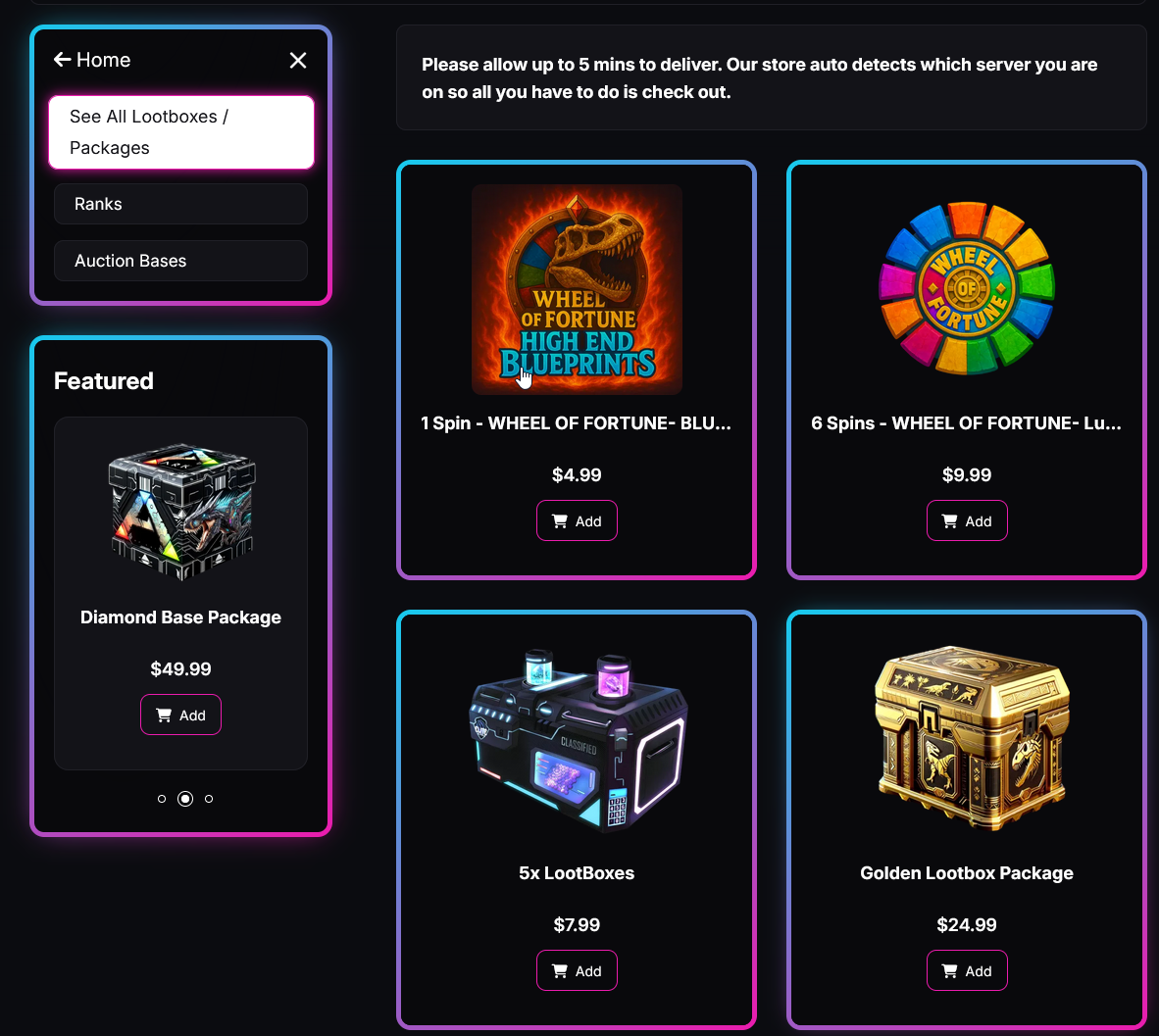
The store from an american point of view
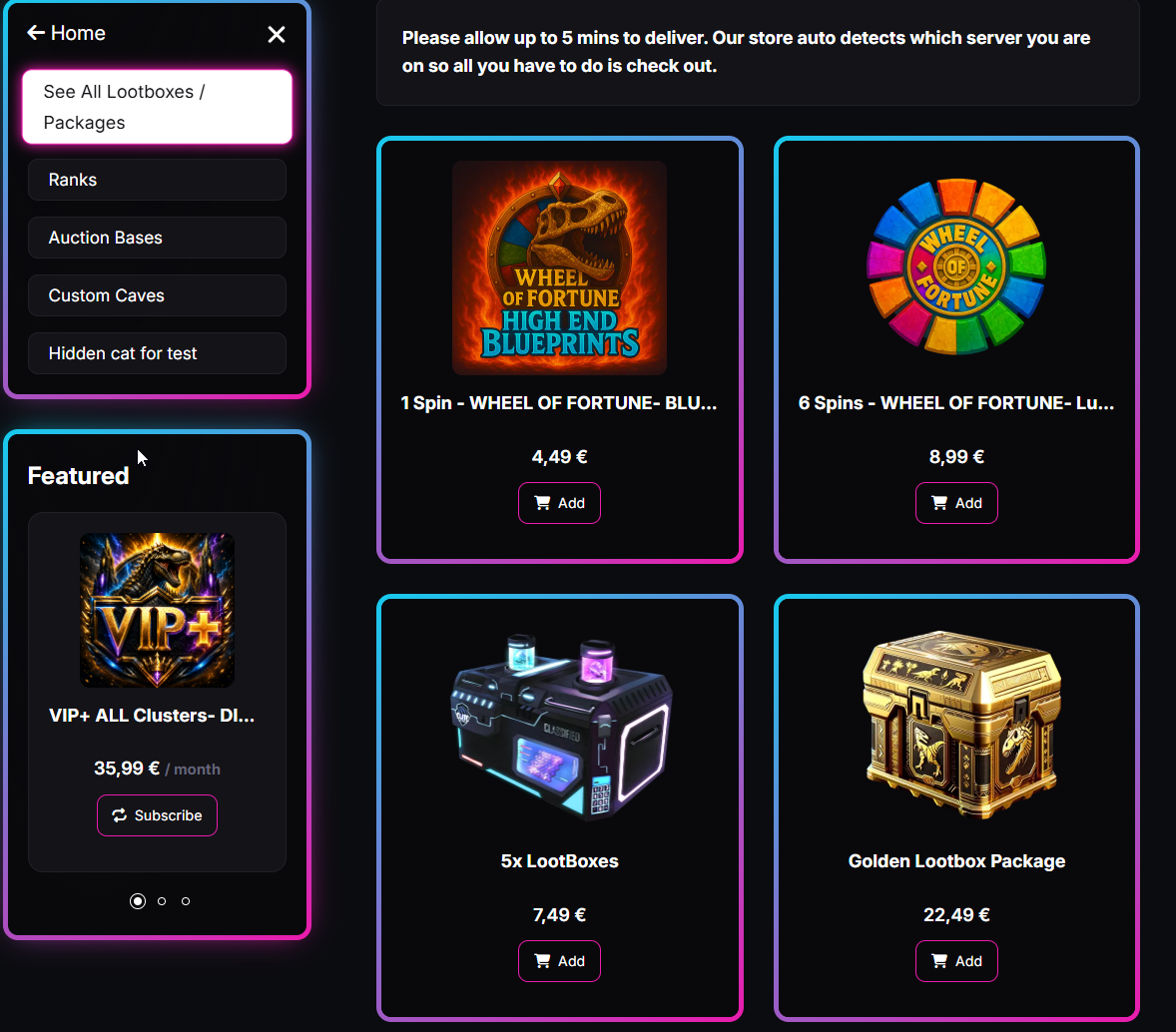
The store from an european point of view
As you can see, two customers from different countries see the same store but with their local currencies.
***
### 3 - What will you receive ?
You will receive the payment in your store currency with the exact same amount you've set up.
\
Tip4Serv automatically rounds the price to a psychological price. For example, if your price is set at $14.99 and the conversion gives you €13.11, it will automatically round it up to €13.99 in order first to increase your sales via the psychological price, but also to have enough money left to pay the conversion fees.